Start a private Commonwealth Online session, copy the host invite code, and let your crew join through
Multiplayer → Direct Connect without sharing a home IP address.
It is a 64-character hexadecimal identity. Players paste it into the EndpointId field
after choosing Internet via Iroh in Direct Connect. They do not enter the host's LAN
address or port for this route.
Recommended path
Internet hosting with an invite code
HOST // 01
Start the private world
Open the host launcher or run the host window from the server pack.
Set the world name, player limit, and game port in World setup.
Enable Allow internet players.
Optionally enable Require a password and set the password.
Click Start hosting and wait for Connection: Online.
Click Copy invite code and send it to your players.
Keep the host window open for the whole session. Stop hosting when the session is over.
PLAYER // 02
Join through Direct Connect
Launch Fallout 4 through F4SE and open Multiplayer.
Open the Direct Connect tab.
Set Connection type to Internet via Iroh.
Paste the invite code into EndpointId.
Enter the password if the host requires one.
Select Connect.
Paste the code exactly as copied: no label, quotes, or extra spaces.
Field reference
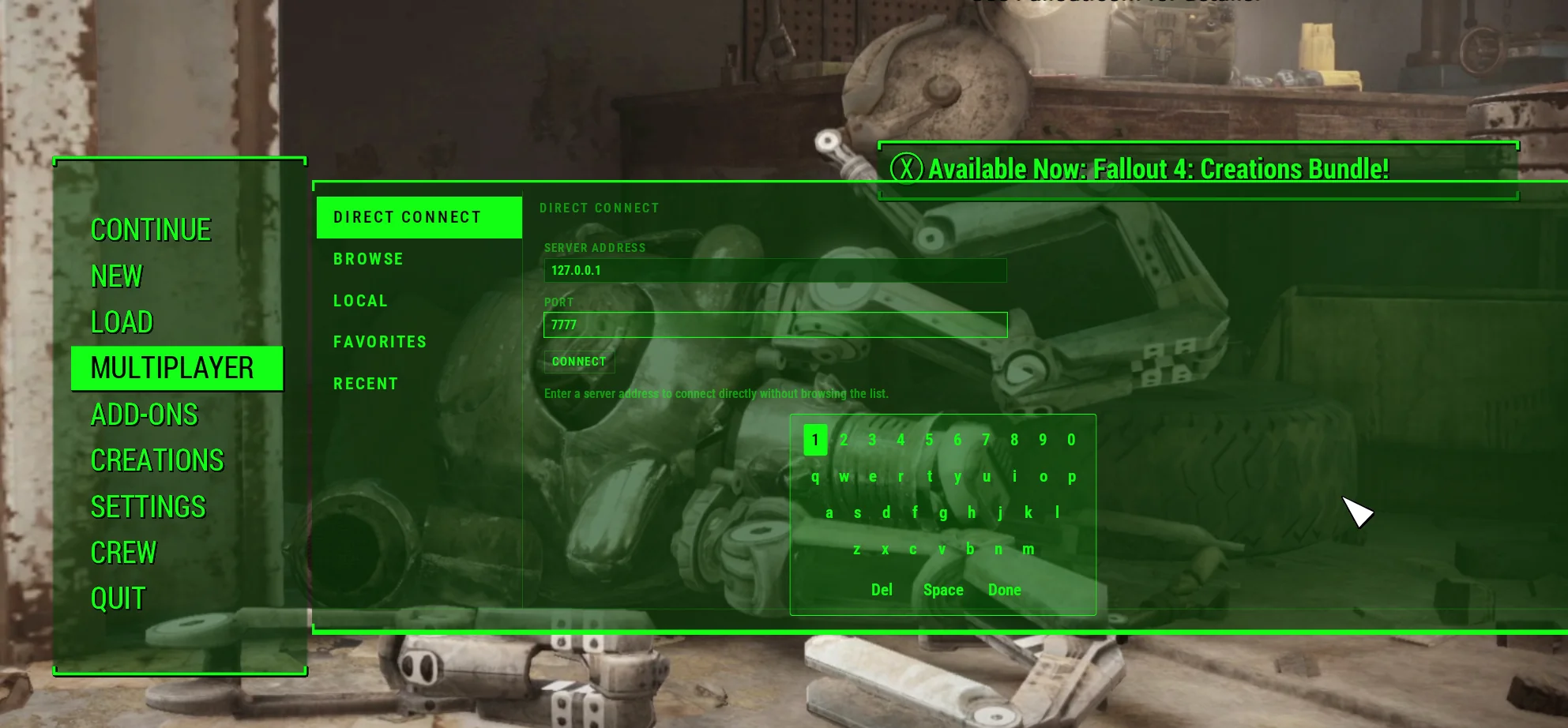
Find Direct Connect in Multiplayer
The connection form lives inside the in-game Multiplayer menu. The current internet path adds the Iroh
connection type and EndpointId field to this same Direct Connect workflow.
Multiplayer → Direct Connect // enter the host identity, then connect.
Local route
Same-PC and LAN hosting
HOST // TCP
Show the local address
Leave Allow internet players disabled, start hosting, and copy the value beside Local connection.
Same PC: 127.0.0.1:7777
Same LAN: 192.168.x.x:7777
The port changes if the host chooses a custom game port.
PLAYER // TCP
Enter the LAN endpoint
In Direct Connect, choose TCP / LAN, enter the host name or IP under Server Address, enter the displayed port, and select Connect.
The Local tab can discover servers on the same network. Manual Direct Connect is the fallback.
LAN firewall noteAllow inbound TCP 7777 (or the custom game port) and UDP 7778 for LAN discovery.
Signal repair
Quick troubleshooting
EndpointId validation fails
The code must be exactly 64 hexadecimal characters. Re-copy it from the host and make sure the connection type is Internet via Iroh.
The host invite field is blank
Enable Allow internet players, start hosting, and wait for Connection: Online. If the state becomes Needs attention, read the host Activity log and restart it.
Joining fails immediately
Confirm the host is still running, the password is correct, both players use the same Fallout 4/F4SE/mod setup, and the player limit has not been reached.
LAN discovery finds nothing
Confirm both PCs are on the same network and Windows Firewall allows UDP 7778 and TCP 7777. Then use TCP / LAN with the host's address manually.
Current build boundary
What the session synchronizes today
Commonwealth Online currently provides shared player presence and visual replication. Quests, combat,
inventory, NPCs, settlements, VATS, and full campaign co-op are not synchronized yet.